
How to Set Up a Passkey in mySolidEarth
Passkeys are a secure and convenient way to log in to the mySolidEarth platform. They let you sign in without remembering passwords and can be created once per device.
First-Time Login and Passkey Setup
1. Check Your Email Invitation
- You will receive an invite email from your association or MLS during account creation.
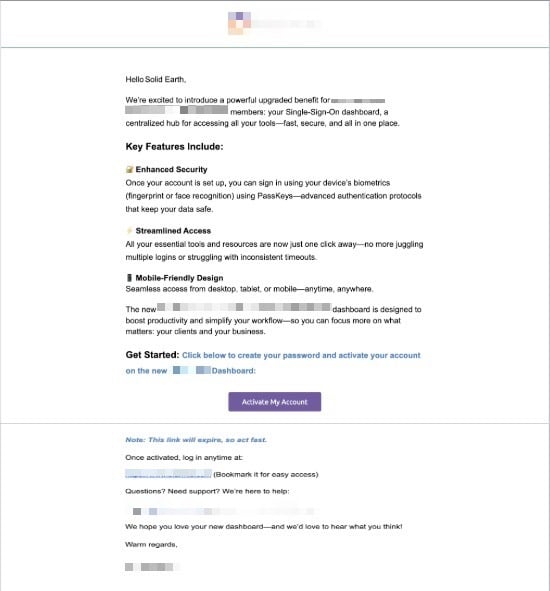
2. You can also create a Passkey from the mySolidEarth login page.
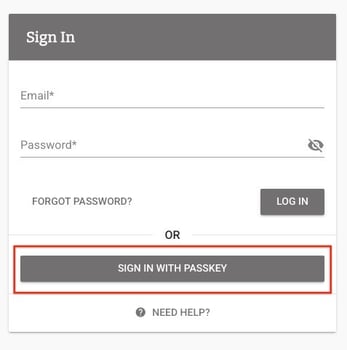
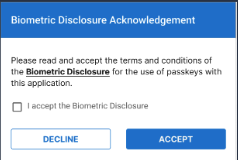
- Once you click the "Activate my Account" or "Sign In With Passkey," you will be taken to a Biometric Disclosure Acknowledgment, and choose "Accept."
- Next, choose the passkey option you’d like to use to save your passkey.
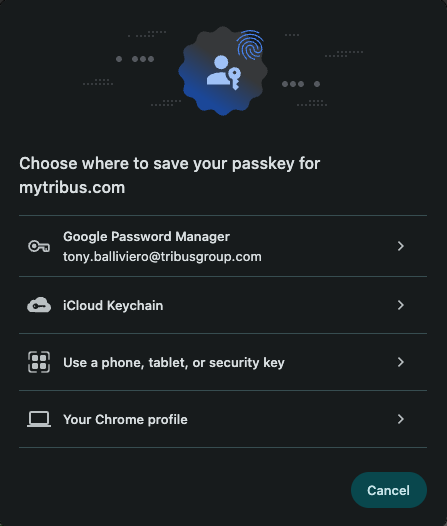
- Once you have selected a passkey option, you will create a passkey for that device.
%20-%20Google%20Slides%202025-08-22%20at%2010.35.11%20AM-1.jpg?width=361&height=326&name=Ezement%20Training%20(Pass%20Keys)%20-%20Google%20Slides%202025-08-22%20at%2010.35.11%20AM-1.jpg)
- Once the passkey has been created for your device, when you log in to your mySolidEarth platform, you will be prompted to use your biometric login.
%20-%20Google%20Slides%202025-08-22%20at%2010.53.55%20AM.jpg?width=419&height=318&name=Ezement%20Training%20(Pass%20Keys)%20-%20Google%20Slides%202025-08-22%20at%2010.53.55%20AM.jpg)
Managing Your Passkeys
If you would like to add an aditional passkey for another device